
Guides / Use cases
AI email replies, in the mail app you already use
The short answer
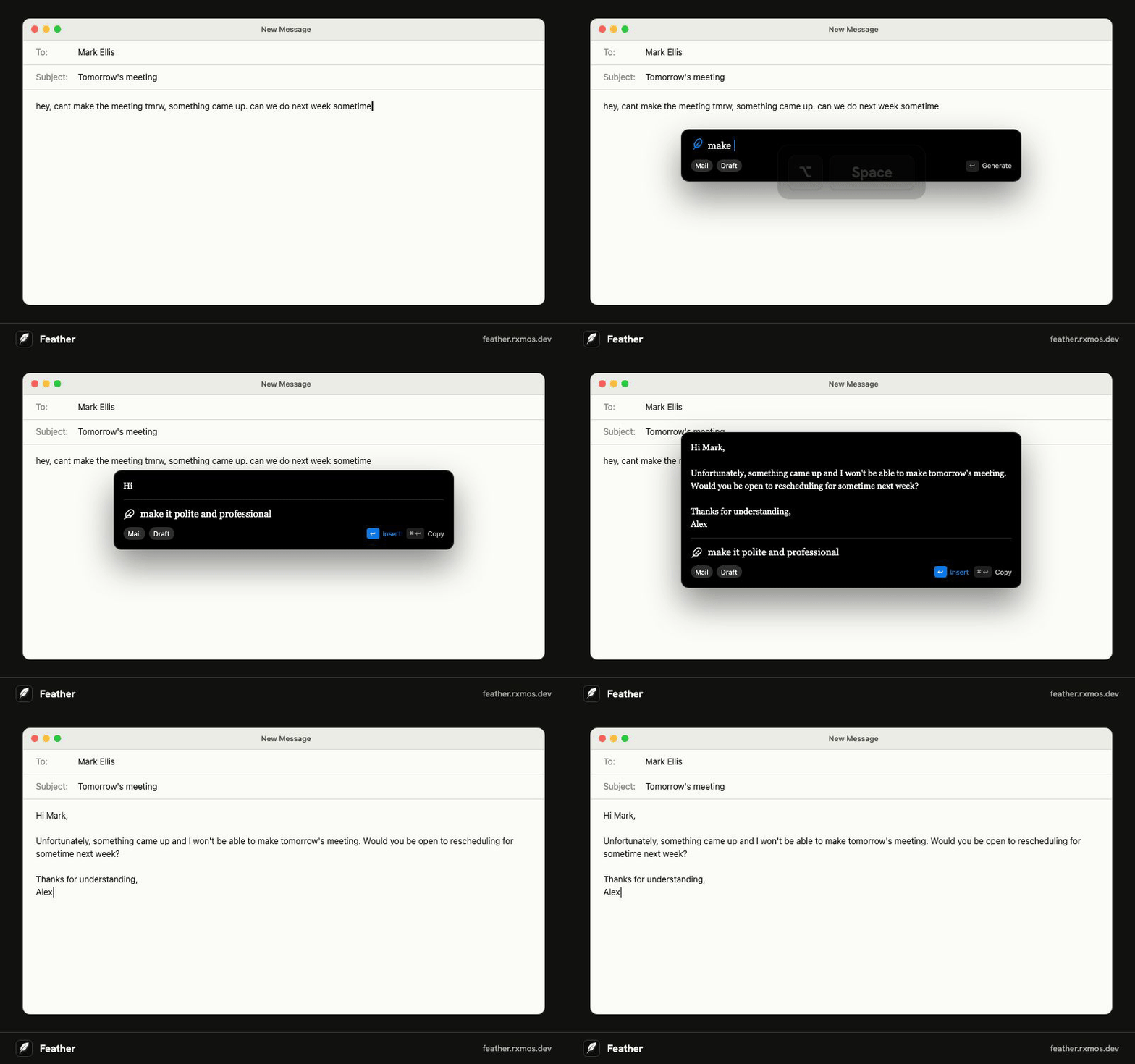
Open the email, click into the reply field, and press Feather's shortcut (⌥ Space on a Mac, Ctrl Shift Space on Windows). Say what you want to answer, like “accept, but ask to move it to Friday”. Feather reads the email on screen, writes the reply in the right tone, and pastes it into the field when you press Return.
Free with your own API key. Feather Plus needs no key.
How it works
Feather reads the app and window name, the text of the field you're in, your selection, and the readable text of the window, so it sees the email you're answering. Turn on screenshots and it also looks at the window.
Because it knows it's in a mail app, the reply reads like an email: a greeting, the answer, and a sign-off.
Refine before you send
Not quite right? Type a follow-up like “shorter”, “more formal”, or “mention the invoice number” and Feather revises the same reply. ⌘ R (Ctrl R on Windows) writes another version.
Works with every mail app
Feather doesn't need a plugin or access to your inbox. It works anywhere you can type: Apple Mail, Outlook, Thunderbird, Gmail or Outlook on the web, and help desk tools.
Questions
- Does Feather read my inbox?
- No. It reads only the window in front of you, only when you press the shortcut, and forgets it when the panel closes.
- Can it reply in another language?
- Yes. Ask for the language you want, like “reply in Spanish”, or ask it to translate the email first.
More guides
- Feather vs Apple Writing Tools
How Feather compares with Apple Intelligence Writing Tools on the Mac: what each one does, which Macs and systems they run on, and when to use which.
- Feather vs Grammarly
Feather and Grammarly both work across your apps, but they do different jobs. How they compare on writing replies, grammar checks, privacy, and price.
- Feather vs the ChatGPT desktop app
Why use Feather when you have ChatGPT? How the two compare for writing replies in other apps: context, copy and paste, models, and price.
- AI replies in Slack, WhatsApp, Teams, and Discord
Write chat replies with AI in Slack, WhatsApp, Microsoft Teams, Discord, or Telegram without copy and paste. Feather reads the conversation and pastes the reply.
- Translate text in any app with a keyboard shortcut
Translate a message, or reply in another language, without leaving the app you're in. Feather translates on a shortcut and pastes the result into the field.
- Rewrite and fix text with AI in any app
Make what you wrote shorter, clearer, more formal, or grammatically correct, right in the field you're typing in. Feather rewrites on a shortcut and pastes it back.
- Use your own OpenAI or Claude API key in any app
Feather is a free, open-source writing assistant that runs on your own OpenAI, Claude, or OpenCode Go API key. Press a shortcut in any app and the reply goes straight into the field.
- AI writing tools on an Intel Mac
Apple Intelligence and its Writing Tools need a Mac with Apple silicon. Feather brings AI drafting, rewriting, and translation to Intel Macs on macOS 14 or later.
- An AI writing assistant for Linux
Feather is an open-source AI writing assistant for Linux. Press a shortcut in any app, say what to write, and it drafts the reply from the window you're in. AppImage, X11 or Wayland.